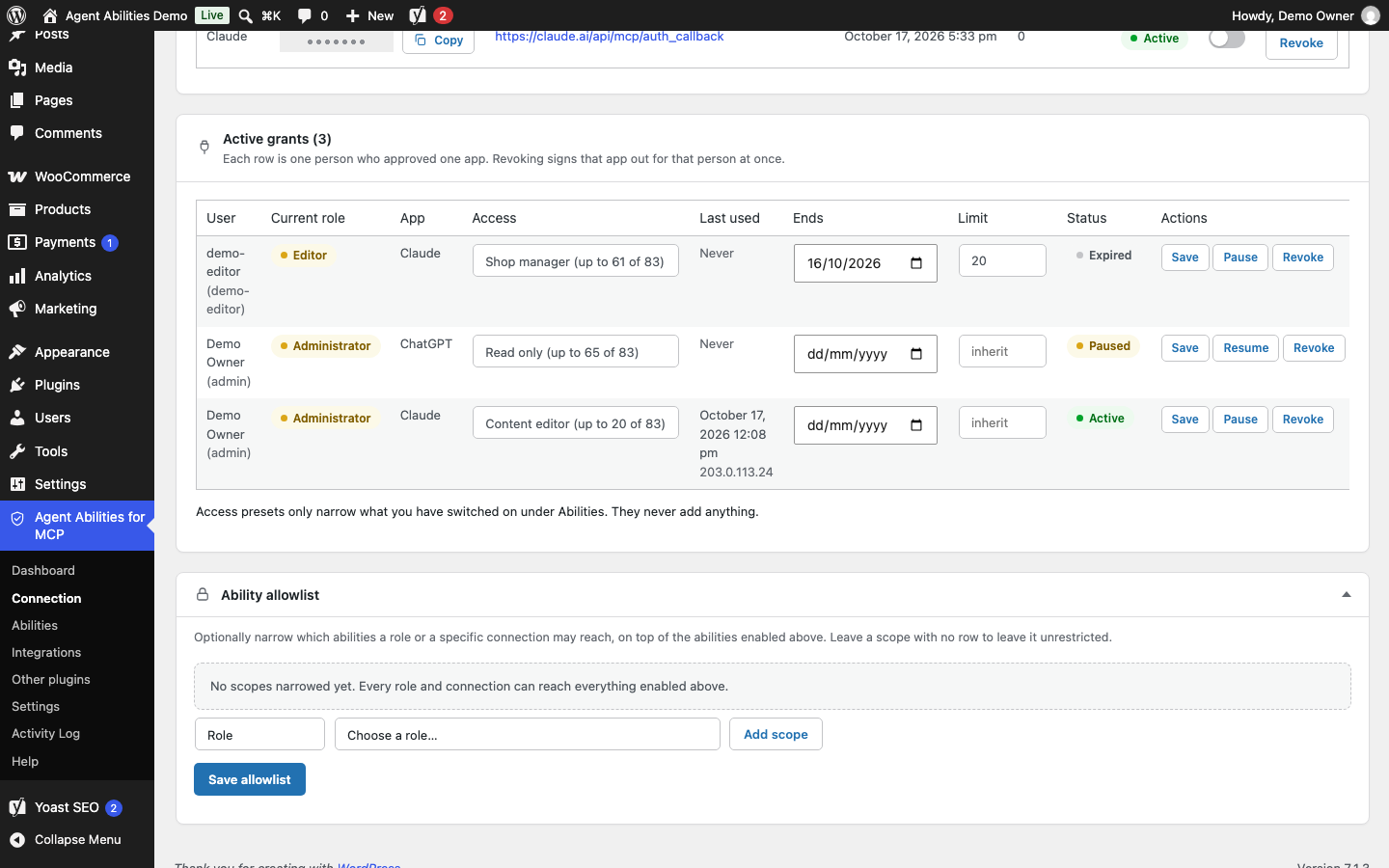
To stop one AI agent from reaching your WordPress site without signing it out, open the Connection tab, choose OAuth, and press Pause on its row in Active grants. The connection keeps its sign-in and each tool call says the connection is paused, and Resume brings it back with no new approval. This arrived in Agent Abilities for MCP 1.10.0, together with an end date, a lower rate limit and a last-used column for each connection.
How do I pause one AI agent connection on WordPress?
Open the Connection tab, select OAuth, find the app under Active grants and click Pause. Each tool call returns a message that the connection is paused until you click Resume, and nobody has to approve the app again. Pausing one connection does not stop the same person’s Application Password.
Takeaways:
- A connection is one person’s approval of one app. Each one now has Pause and Resume, an optional end date, an optional lower rate limit, and a last-used time and address.
- A paused agent still signs in, and each tool call returns “This connection is paused by the site owner”, so it can tell you why it stopped.
- Access presets (Read only, Content editor, Shop manager, Custom) narrow what a connection can call, and they never add a tool you did not enable.
- Pause all access is the site-wide version. It covers this plugin’s endpoint and the MCP Adapter’s default server, for OAuth and Application Passwords.
- Updating changes nothing for existing connections until you use a control.
Why one connection needs its own controls
Each row in Active grants is one person who approved one app, and revoking it signs that app out for that person at once. That is the right move when you think a token has leaked. It is the wrong move when you only want an agent to stop for an afternoon while you read the log, because the person then has to approve the app again.
Before 1.10.0 the other tools were wider ones: the site-wide list of enabled abilities, a per-role allowlist and a per-connection allowlist. Pause, end dates and a per-connection rate limit fill the gap between “everything is fine” and “sign it out”.
The controls on each connection
The Active grants table has a column for each control. The same row shows who approved the app, their role and the app’s name.
| Control | What it does | If you leave it alone |
|---|---|---|
| Pause and Resume | Refuses the connection’s tool calls with a message that it is paused until you resume it. The sign-in is kept. | Not paused |
| End date | After the date the connection is refused until a site administrator renews it. Its old tokens never work again. | No end date |
| Limit | A per-minute cap for this connection, lower than the site-wide one. | Inherits the site limit |
| Last used | When the connection last made a call, and from which address. | Always shown |
| Access | A preset that narrows which of your enabled tools this connection can call. | Custom, which adds no limit |
Each row has its own Save button, and Revoke is still beside Pause. The note under the table says what the controls cannot do: presets only narrow what you switched on under Abilities, and, once you have set a site-wide limit, a connection limit cannot go above it.
Pause and resume: what the agent sees
Since 1.10.1 a paused connection still signs in and lists its tools, and each tool call comes back with a message that the connection is paused, so the agent can tell you why it stopped.
In 1.10.0 a paused connection was refused with an ordinary 403 Forbidden instead. In the MCP authorization spec, 401 means authorization is required or the token is invalid, while 403 means invalid scopes or insufficient permissions. We checked that before the 1.10.0 release against a demo site with the real claude.ai and ChatGPT connectors. Both read the site name, both failed after Pause, and both read it again after Resume, without a new sign-in. What they showed is why 1.10.1 changed it:
- claude.ai reported: “Error POSTing to endpoint: MCP server returned 403 Forbidden. The request may have been blocked by a firewall or security service.” It then guessed at a firewall rule, a rate limit or a revoked token.
- ChatGPT reported: “FORBIDDEN: Error code: FORBIDDEN; Error: McpServerError: Sorry, you are not allowed to do that.”
Neither message said the connection was paused, so whoever used it could start debugging a firewall that was fine. On 1.10.1 the tool error names the pause. If you pause a connection that someone else is using, tell them anyway.
An end date for temporary access
Set a date in the Ends column for access that should lapse on its own, such as an agency’s agent for a launch week. After that date the connection is refused until a site administrator renews it, and its old tokens never work again.
An expired connection shows as Expired in the Status column, as in the demo row in the screenshot above. Renewing is a deliberate act by an administrator, so a forgotten connection does not quietly stay open.
A lower rate limit for one connection
The Settings tab has a per-minute cap under “Rate limit (per minute)”. Each agent user can make that many calls a minute, shared by all of that user’s connections, and 0 turns it off. The Limit column lets you give one OAuth connection a lower cap of its own, and its calls count against both limits.
Calls over a cap are denied and logged on the Activity Log tab, so you can spot a connection that keeps hitting it. Once a site limit is set, a connection limit cannot go above it, so this control only ever tightens.
Last used
The Last used column shows when each connection last made a call and from which address. Use it to find connections nobody uses any more, then pause or revoke them.
If your site sits behind Cloudflare or another proxy, turn on Real visitor address behind a proxy or CDN on the Settings tab. It is off by default, and it makes the Activity Log and the IP allowlist see visitors’ real addresses.
Access presets
A preset is a ceiling for one connection. You choose it when you approve the app or in Quick Connect, and you can change it later in the Access column. The Access column also shows how many of your enabled tools the preset reaches, for example “Content editor (up to 20 of 83)” in the demo above.
| Preset | What the connection can do |
|---|---|
| Read only | Can look at your content, never change it. |
| Content editor | Posts, pages, media and categories or tags. No deletes, users, settings or comments. |
| Shop manager | Everything in Content editor plus WooCommerce, except deletes and the nine money and authority tools. |
| Custom | Everything you have switched on, limited only by the approving user’s role. |
Since 1.11.0 (2026-11-06): the plugin’s wording for two presets now names playbooks. Content editor reads “Posts, pages, media, categories or tags and playbooks. No deletes, users, settings or comments.” Shop manager reads “Everything in Content editor, playbooks included, plus WooCommerce, except deletes and the nine money and authority tools.” What they reach has not changed. See the changelog.
Since 1.11.1 (2026-11-08): the Shop manager row now says “ten money and authority tools”. Create WooCommerce order joined the high-risk lock, and the preset no longer reaches it. See the changelog.
The wording is the plugin’s own. A preset never reaches a tool that is not already enabled and allowed. The preset you choose in Quick Connect becomes the default, and someone who approves an app but cannot manage the site can pick that default or a narrower one, never a wider one.
Application Passwords have no per-password limit
An Application Password inherits its user’s whole role, and there is no separate limit for one password. WordPress has shipped Application Passwords since version 5.6, and WordPress core already records data on each password’s last usage, such as date and IP address.
The Application Passwords tab on the Connection tab lists the agent users’ passwords with when each was created and last used, the address it was last used from, and a Revoke button. For a pause that covers every credential at once, use Pause all access.
Pause all access
Pause all access sits at the top of the Connection tab. It refuses every MCP request through this site, on this plugin’s endpoint and on the MCP Adapter’s default server, for OAuth apps and Application Passwords alike.
Nothing is deleted, and resuming carries on where you left off. It does not stop an Application Password from using the rest of the WordPress REST API. For that, revoke the password or change the user’s role.
Who can approve a connection
The new Roles that can connect setting on the Settings tab decides who may approve an app. A site that was already installed keeps the old rule, any user who can edit posts, until you save that list. A new install starts with Administrators only.
If you narrow the list, the connections of people whose role was removed stop working. A site filter named aafm_oauth_min_capability overrides the list.
When these controls are not the right tool
Pause is not revoke. If you think a token has leaked, revoke the connection, which signs it out, and do not rely on a pause you plan to lift.
Presets are coarse by design. If a connection should reach one exact set of tools, use the per-connection allowlist on the same tab. Presets apply to OAuth connections only, since an Application Password inherits its user’s whole role.
Agent Abilities for MCP is best for site owners who want to keep an agent connected but stop it quickly and on purpose: a pause, an end date or a lower limit per connection, recorded in an Activity Log you can search.
Questions
Does pausing sign the agent out? No. The connection keeps its sign-in, and Resume makes it work again without a new approval.
Does pausing undo what the agent already did? No. Since 1.11.2, edits made with the tools the Changes tab covers can be reverted from there. Undo what an AI agent changed lists what it covers and what it cannot undo.
Will updating to 1.10.0 change my existing connections? No. Every control is off or behaves as before until you use it, and existing connections keep their access.
What if I roll back to 1.9.x? Per-connection pauses, end dates, presets and limits are ignored, and each connection runs with the site-wide access again.
The rest of the release is in what 1.10.0 adds. To see what a paused or refused call looked like afterwards, read how to find what an AI agent did on your WordPress site, the connection controls docs are the reference for each field, and the safety controls docs cover the switches that sit beside these.