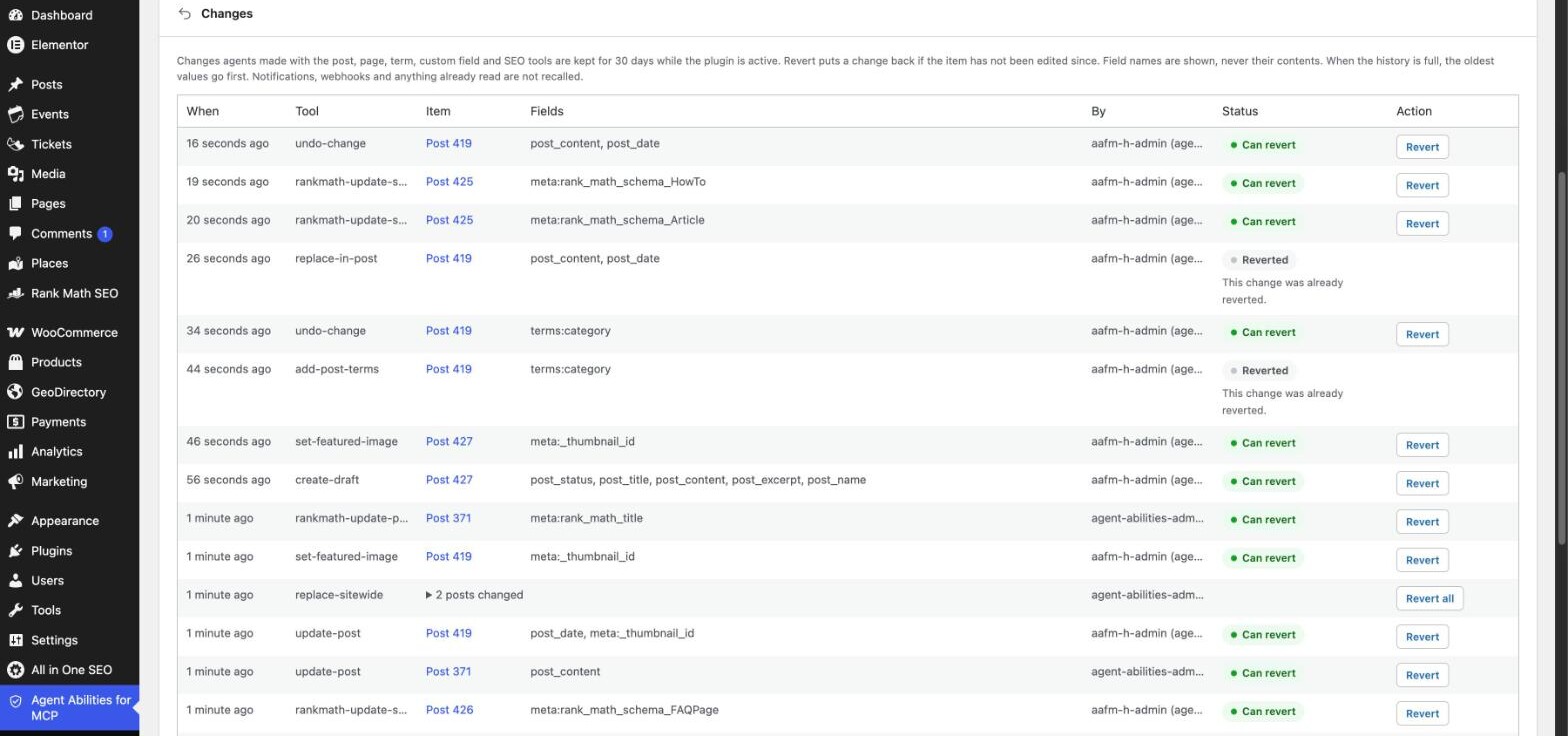
If ChatGPT or Claude edited the wrong thing on a site running Agent Abilities for MCP, you can often put it back. Open the Changes tab, find the row and press Revert. That works for edits made with 25 of the plugin’s tools, for up to 30 days, as long as nobody has edited the item since. Permanent deletes, orders, refunds and tools from other plugins can’t be undone, so for those you need your own backup.
Check what it actually did
Before you revert anything, look at what ran. The Changes tab lists each recorded change with the tool, the item, the field names it touched and the WordPress user the agent ran as. The Activity Log covers every call, including the ones that can’t be undone, and it does show the connection. How to find what an AI agent did on your WordPress site shows how to filter it by connection and date.
It makes no difference whether the edit came from ChatGPT, Claude or another client. The Changes tab shows the tool and the user, not which app sent the call. It also records only what agents did through the plugin’s tools, plus your own reverts. Edits you made yourself in the editor aren’t in it.
An edit to a post, a page or a custom field
- Open the Changes tab in the plugin’s wp-admin menu. You need an administrator account.
- Find the row for the item (it shows as an ID such as Post 419, linked to the edit screen) and check the Fields and By columns.
- If the status says Can revert, press Revert. The earlier values come back.
- If it says Cannot revert, the row gives the reason.
A revert is refused rather than overwrite newer work. It is also refused if the change is older than 30 days, if it was too large to keep, or if a page builder now owns the post. A refused revert changes nothing. A successful one is recorded as a change of its own, so you can revert the revert.
This covers posts, pages and custom post types, terms, custom fields, featured images and the SEO fields of Yoast, Rank Math, Slim SEO and All in One SEO. The full list of 25 tools is on the undo page.
A find and replace that went too far
A site-wide find and replace shows up as one group in the Changes tab. Revert all puts back every post in the group that hasn’t been edited since, and it tells you how many it couldn’t restore. Those you fix by hand.
Something was trashed or deleted
Two different things happen here, and only one of them is recoverable.
If the agent trashed a post or page, the item is in the WordPress Trash. Reverting the change takes it back out, and the Trash screen can restore it too.
If the agent permanently deleted something, this plugin can’t bring it back. Delete tools skip the Trash, they are off by default, and the history doesn’t record them. Restore it from your own backup or your host’s.
What WordPress revisions will and won’t do
Revisions help less than you might think. WordPress saves no revision when a post is created, and on an update it stores the new state. So the first edit to a post with no earlier revisions leaves no earlier copy to go back to. The Changes tab keeps the earlier values itself for the tools it covers, which is why it is the better first stop. For a content edit on a post that does have revisions, the row also links to WordPress’s Compare revisions screen.
What no tool here can put back
Orders and refunds, user accounts, file uploads, WooCommerce products, ACF field values, menus, comments and events aren’t recorded. Neither are tools that other plugins add through the Bridge. Notifications, webhooks and anything the agent already read can’t be recalled. Every one of this plugin’s own write tools says in its response whether its change can be undone, with a reason when it can’t, so the agent can tell you straight after it acts.
Let the agent undo its own mistake
Two optional tools, list-changes and undo-change, let an agent revert its own recent work without you opening wp-admin. Both start off. An agent can undo only changes made on its own connection, from the last 24 hours, up to 30 undo calls an hour. The Read only, Content editor and Shop manager presets leave undo-change out. Anything older, or made by another connection, is yours to revert from the Changes tab.
Make the next one easier to undo
- Leave Keep change history on in Settings. It records only while the plugin is active.
- Turn on Force draft on create, so new content lands as a draft in the Needs review card. It doesn’t hold edits to posts that are already live, so connect the agent as a Contributor if that matters. Review what your AI agent wrote before it goes live covers both.
- Pause the connection while you sort things out. A pause stops further calls and undoes nothing. Pause, limit or expire an AI agent connection has the steps.
- Keep a backup for the things the history doesn’t cover.
Questions people ask
Does the Changes tab show the old text? It shows field names, never contents. The earlier values are stored in a table in your site’s database, and they go when the history expires, is cleared or the plugin is uninstalled.
How long can I wait? Up to 30 days. A row or size cap can drop the oldest values sooner, so treat 30 days as the most you can count on.
Is this a backup? No. It takes back what an agent did with those 25 tools. Everything else needs a backup.
The undo page has the full list of what’s covered, with the limits: undo what an AI agent changed in WordPress. The docs go deeper in undo and change history.