Connect Claude Desktop to WordPress over MCP
Point Claude Desktop at your site's MCP endpoint as a scoped user. Connect once, then it can call only the abilities you switched on, and every call is checked and logged.
Set it up in four steps
Claude Desktop connects through a custom connector, so you add your endpoint and approve it once in the browser over OAuth. There is no config file to edit and no application password to copy.
Claude Desktop specifics: Claude Desktop uses the same custom connector as Claude.ai, so a connector you add in one shows up in the other. Open Settings, then Connectors, add your site using your MCP endpoint URL, and approve it once over OAuth. Custom connectors run from Anthropic’s side rather than from your own machine, so your site has to be reachable on the public internet. A site on localhost or behind a VPN will not connect this way even though the app is sitting on your desktop.
Turn on what you want
Open the Agent Abilities for MCP screen and enable only the abilities you want the agent to have. Everything starts off.
Copy your endpoint
On the Connection tab, copy your site’s MCP endpoint.
Add it as a custom connector
Add your site as a custom connector with that endpoint URL, then approve it once over OAuth, logged in as the account you want the agent to be.
Check the connection
Use the connection check on the Connection tab to confirm the endpoint is reachable, then run a call from your client.
Connect over OAuth. Least privilege.
Claude Desktop authenticates as a real WordPress user, never an admin-equivalent key, and it takes that account’s capabilities. Approve while logged in as the account you want the agent to be.
Approve once in the browser
Approve the agent once in the browser, while logged in as the account you want the agent to be, because it takes that account’s capabilities. There is no secret to store.
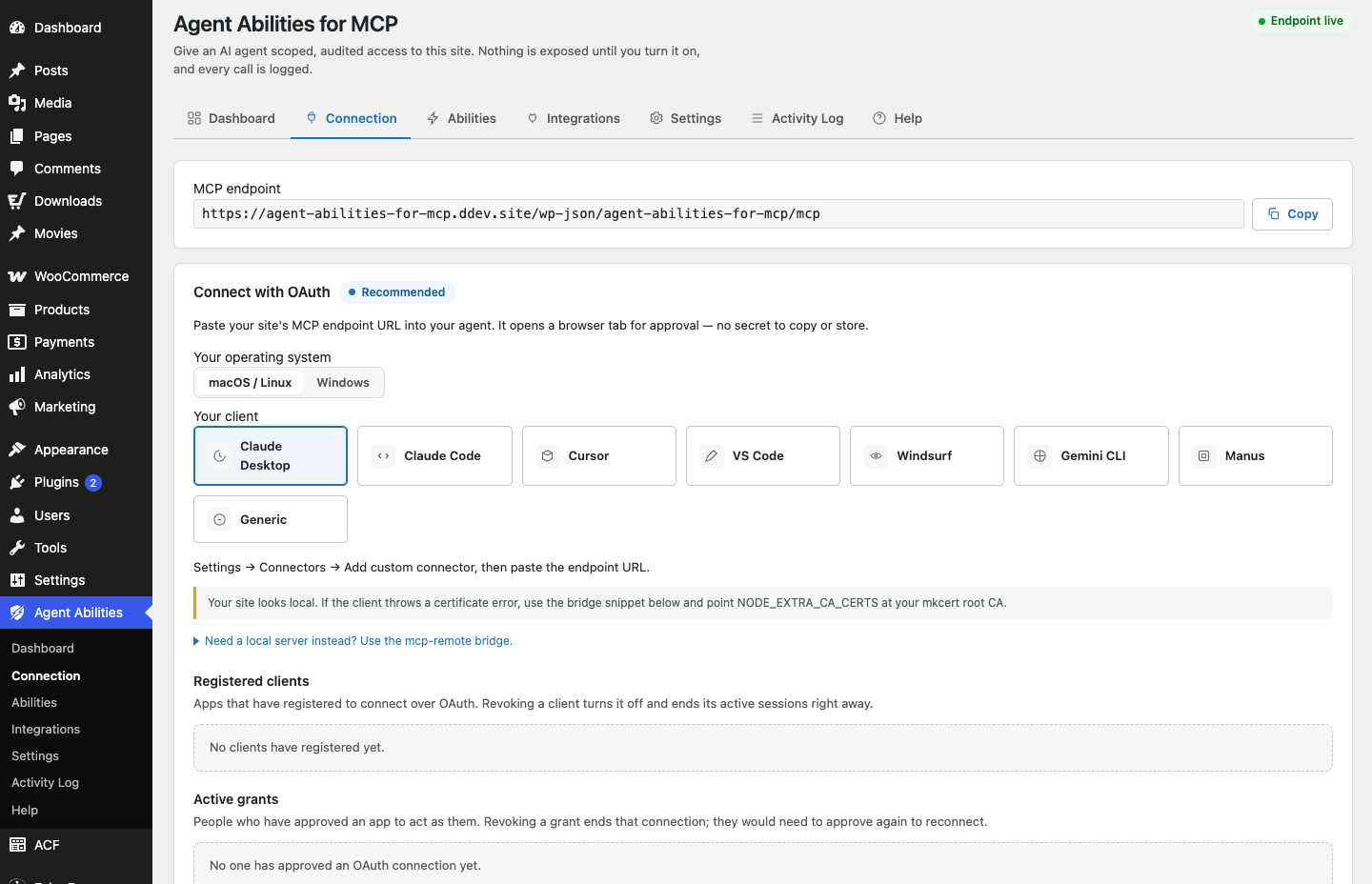
Where to get your real endpoint and token: open Agent Abilities for MCP in wp-admin, go to the Connection tab, and copy the endpoint there. The same screen builds the client config for you and runs a connection check so you can confirm the endpoint is reachable before you connect Claude Desktop.
If the connection will not start
A few common snags and their fixes. These apply to MCP setup generally, not just Claude Desktop.
OAuth discovery returns 403 or 404
Some servers deny anything that starts with a dot before PHP runs, which blocks the /.well-known/ documents MCP clients need. On nginx, add a location block so /.well-known/ falls through to WordPress.
Once Claude Desktop is connected
Decide what it can reach, then check the details.
Choose which abilities to expose
All 179 governed abilities, each off until you switch it on. Enable only what Claude Desktop needs.
Browse the catalogConnecting a client, in full
The full reference for both routes in: OAuth in the browser, or an Application Password on a scoped user.
Read the connection docsHow a WordPress MCP server works
What your site exposes over MCP, and how governance sits in front of every call Claude Desktop makes.
See the server modelOther clients
Governed by default, from the first call.
Install the plugin, connect Claude Desktop as a scoped user, and enable one ability at a time. Requires WordPress 6.9+ and PHP 7.4+. Free on WordPress.org, no paid tier, no API key to buy, no usage limits.
Governed from the first call. Nothing leaves your site without you.