
Controlling each connection
Since 1.10.0 every OAuth connection has its own controls: you can pause it, give it an end date or a lower rate limit, and narrow it to an access preset. The Connection tab also gained a switch that pauses all MCP access, and the Settings tab gained two controls for who can connect and which address the plugin sees. Nothing changes until you use them. Existing connections keep their access.
Where things are on the Connection tab
Section titled “Where things are on the Connection tab”The top of the tab is the same as before: your MCP endpoint and Check my connection. Below it sits the Pause all access card, then two tabs.
- OAuth holds a collapsed Token lifetimes and client registration card, then Registered clients and Active grants. The dynamic client registration switch moved here from the Settings tab. ChatGPT and Claude need it on to connect.
- Application Passwords lists the Application Passwords on the agent users this plugin created, with when each was created and last used, the address it was last used from, and a Revoke button.
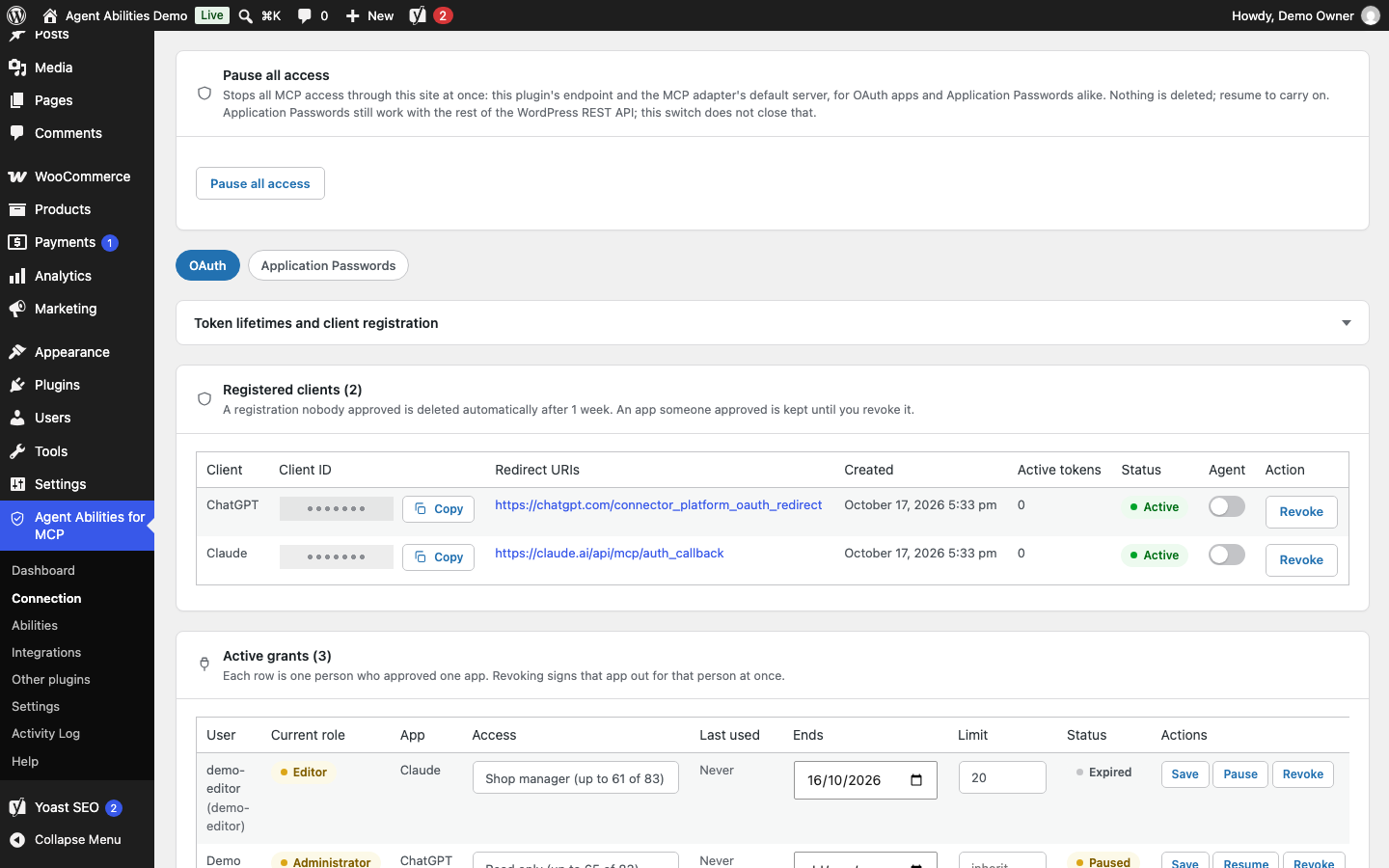
Token lifetime changes apply to tokens issued from then on. Lowering a lifetime does not shorten a token that already exists, so use Revoke when you want a connection to end now.
Pause and resume one connection
Section titled “Pause and resume one connection”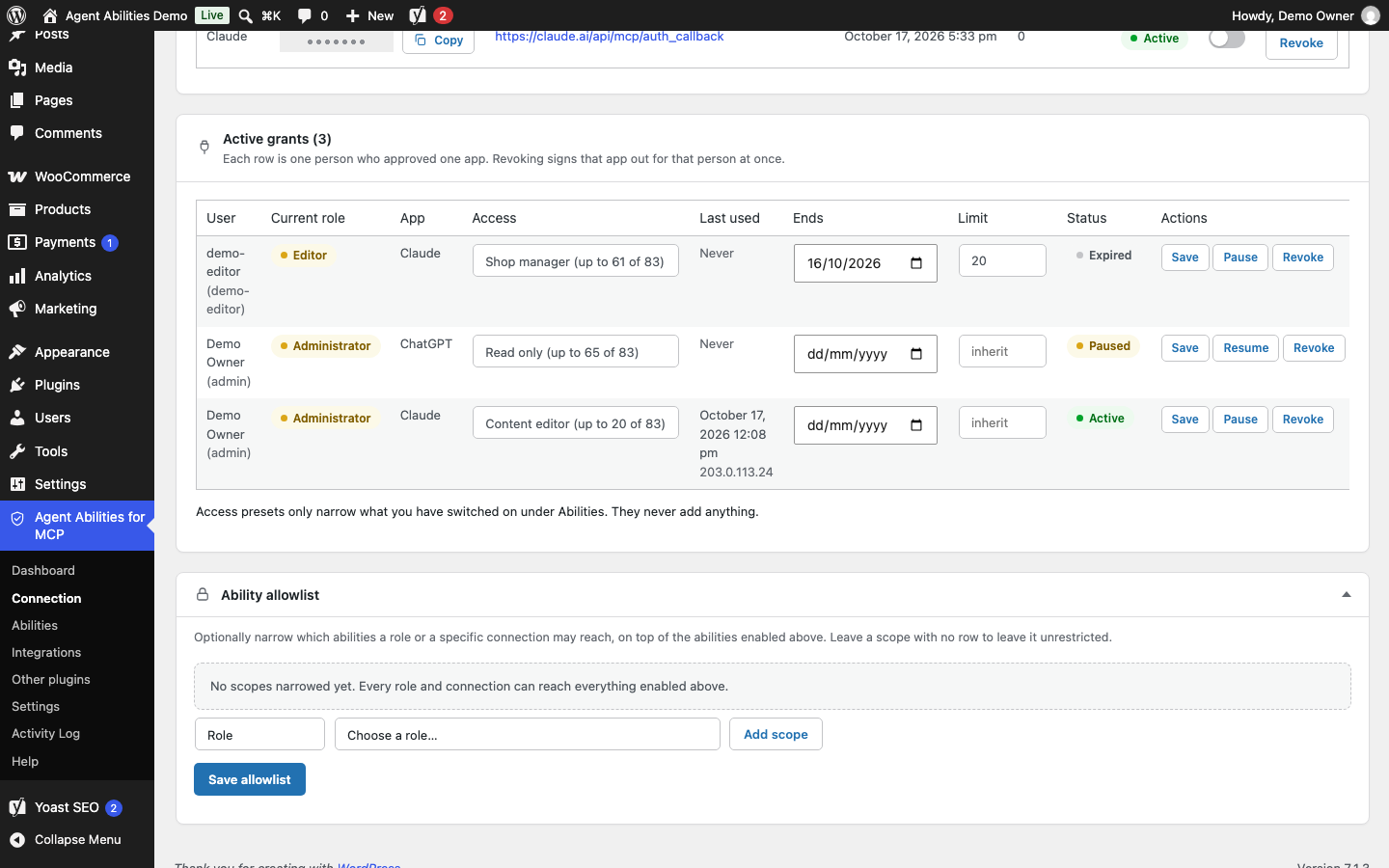
Each row under Active grants has Pause and Resume next to Revoke. A paused connection keeps its sign-in and can still list tools, but every tool call returns a message that the connection is paused until you resume it, and nobody has to approve it again. Before 1.10.1 a paused connection got a plain 403 Forbidden, which claude.ai showed as a firewall or sign-in error.
Pausing one connection does not stop the same person’s Application Password. Revoke that separately on the Application Passwords tab if you need to.
Give a connection an end date
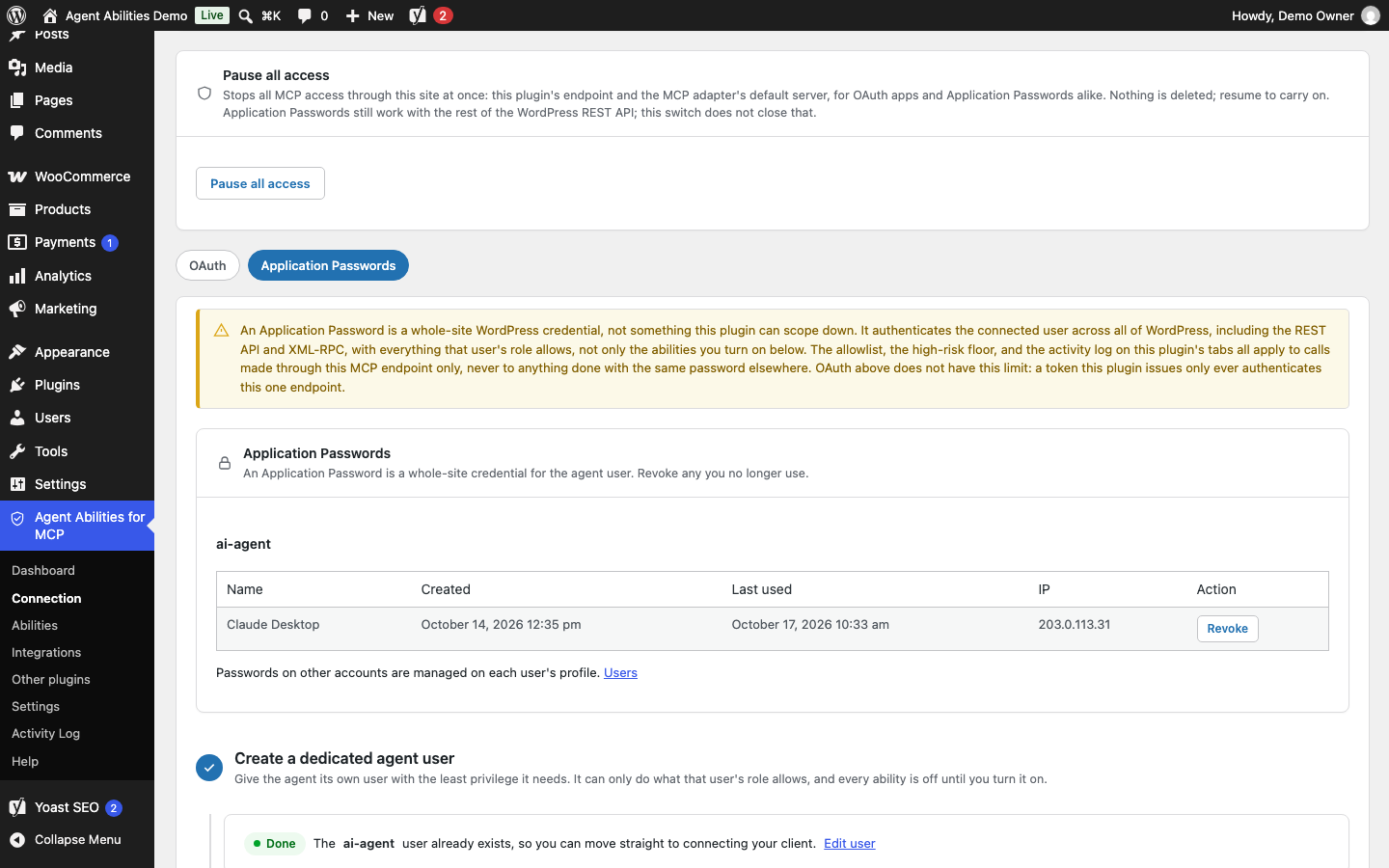
Section titled “Give a connection an end date”Pick an end date on the connection’s row. The date has to be in the future, and the connection stops at the end of that day. After its end date a connection is refused until a site administrator renews it, and its old tokens never work again. To stop a connection today, pause or revoke it instead.
A rate limit for one connection
Section titled “A rate limit for one connection”The site-wide cap lives on the Settings tab under “Rate limit (per minute)”. Each agent user can make that many calls a minute, shared by all of that user’s connections, and 0 turns it off.
On a connection’s row you can set a lower limit of its own, as a whole number from 1 to 10,000 calls a minute. Leave it empty to use the site limit. That connection’s calls count against both, so whichever limit is reached first applies. Calls over a cap are denied and logged on the Activity Log tab.
When and where a connection was last used
Section titled “When and where a connection was last used”Each row shows when the connection was last used and the address the request came from. Behind a CDN or proxy that address is the proxy’s unless you turn on Real visitor address behind a proxy or CDN.
Access presets
Section titled “Access presets”Each OAuth connection can carry an access preset. You pick it when you approve the app on the consent screen or in Quick Connect, and you can change it later on the connection’s row. The row shows how many of your enabled tools each preset reaches.
| Preset | What it reaches |
|---|---|
| Read only | Can look at your content, never change it. |
| Content editor | Posts, pages, media and categories or tags. No deletes, users, settings or comments. |
| Shop manager | Everything in Content editor plus WooCommerce, except deletes and the nine money and authority tools. |
| Custom | Everything you have switched on, limited only by the approving user’s role. |
A preset means “up to these tools”, so it only narrows. It never reaches a tool that is not already enabled and allowed for that role and connection, and it never adds a capability the approving user lacks. Read only also covers read tools bridged from your other plugins. Content editor and Shop manager do not reach bridged tools at all; only Custom does.
The preset chosen in Quick Connect becomes the site default. Someone approving an app who cannot manage the site can pick that default or a narrower preset, never a wider one.
Presets sit on top of the per-role and per-connection allowlist, which still applies. There is no finer scoping below role and OAuth connection: an Application Password inherits its user’s whole role.
Pause all access
Section titled “Pause all access”To stop everything at once, use Pause all access on the Connection tab. It refuses every MCP request through this site, on this plugin’s endpoint and on the MCP Adapter’s default server, for OAuth apps and Application Passwords alike. While it is on, a notice heads the Connection tab and Check my connection reports it as a failed check.
It does not stop an Application Password from using the rest of the WordPress REST API. To cut that off, revoke the password.
Pausing and resuming all access, and each change to a connection’s pause, preset, end date or rate limit, is written to the Activity Log.
Roles that can connect
Section titled “Roles that can connect”Roles that can connect on the Settings tab decides who may approve an app’s connection. Administrators are always included.
- A site that was already installed keeps the old rule (any user who can edit posts) until you save that list.
- A new install starts with Administrators only.
- A site filter on
aafm_oauth_min_capabilityoverrides the list.
If you narrow the list, the connections of people whose role was removed stop working.
Real visitor address behind a proxy or CDN
Section titled “Real visitor address behind a proxy or CDN”By default the Activity Log, the IP allowlist and the abuse limits see the address the request came from, which behind Cloudflare or another proxy is the proxy. Real visitor address behind a proxy or CDN on the Settings tab changes that. It is off by default.
- Choose Cloudflare, which reads
CF-Connecting-IPand uses the Cloudflare address list that ships with the plugin. - Or choose Custom, pick the header your proxy sends (
CF-Connecting-IP,True-Client-IP,X-Real-IPorX-Forwarded-For), and list the addresses it connects from.
The header is believed only when the request comes from one of those addresses. A range wider than /8 for IPv4 or /16 for IPv6 is not accepted. When the header holds a list, the plugin takes the rightmost address that is not itself one of your proxies.
Rolling back to 1.9.x
Section titled “Rolling back to 1.9.x”Rolling back to 1.9.x ignores per-connection pauses, end dates, access presets and limits: each connection runs with the site-wide access again.
Next steps
Section titled “Next steps”- Connecting a client: OAuth and Application Passwords, and how to revoke one.
- Safety controls: the site-wide guards these controls sit on.
- Troubleshooting: what Check my connection looks for.