Version 1.9.0 makes the Activity Log searchable and adds optional alerts. The new search and filters only read the log, and the alerts stay off until you switch them on.
The catalog is unchanged at 179 abilities, and no ability was added, removed or renamed. The release came out on 16 October 2026, the same day as the 1.8.1 hotfix.
Takeaways:
- The Activity Log has filters for user, connection, tool, plugin, date and text, three new columns (connection, duration, IP), a 7-day summary and a Live view. The CSV export follows your filters.
- A denied call records why it was refused, for example “key is not on the allowlist”. The reason is in the admin log only, never in the message the agent sees.
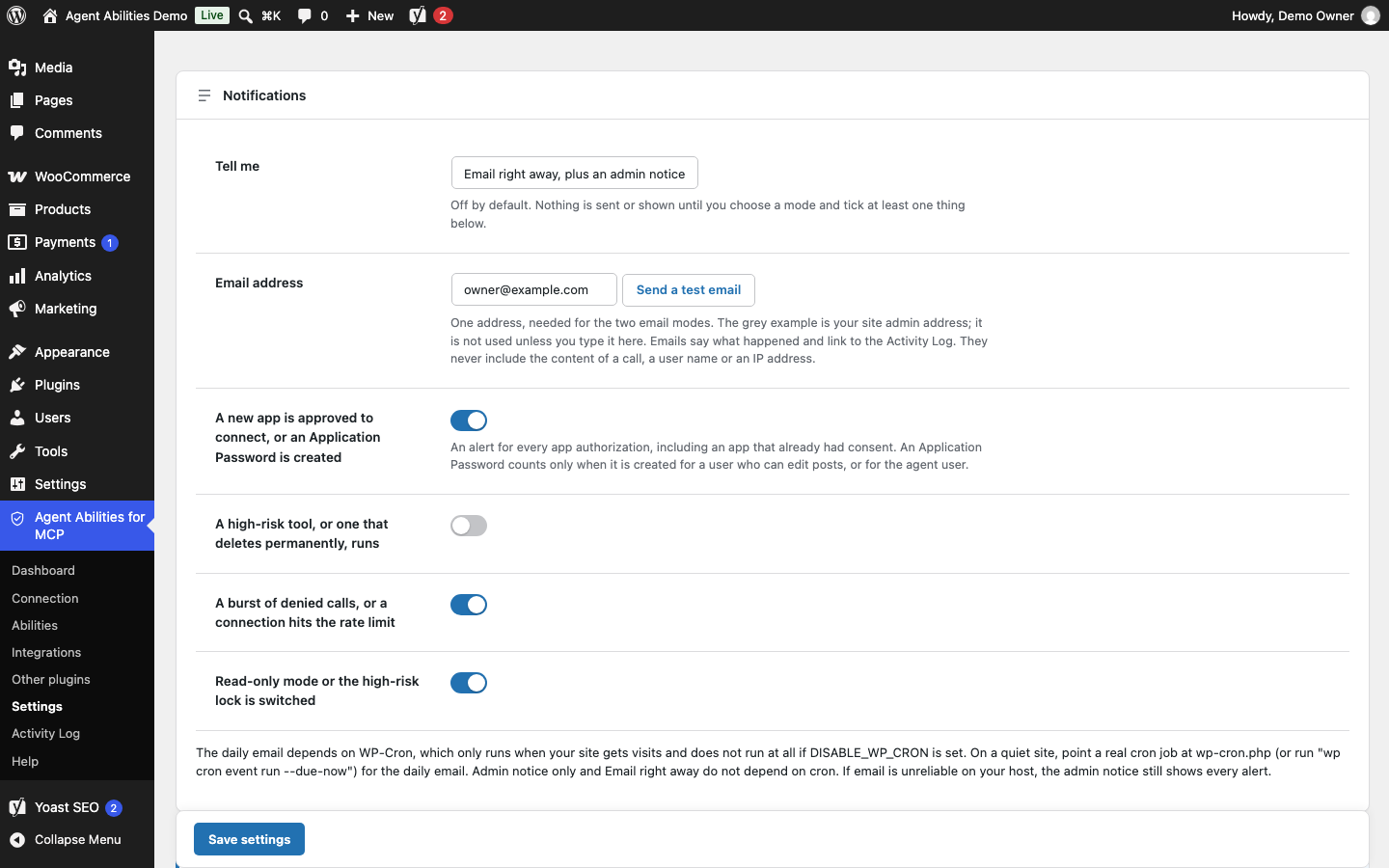
- Alerts are off by default. You choose an admin notice, an email right away, or one daily email, and then tick the events you care about.
- The upgrade adds one database column and needs no action. Alerts do nothing until you turn them on.
- All of this is for you in the admin screen. The ability that lets an agent read the log did not gain any of it, and it now returns less.
A log you can search
The Activity Log tab opens with a summary of the last 7 days: calls, success rate, denied, errors, and the most-called tools. Under it sit the status tabs (All, Success, Errors, Denied, Started) and a filter row for user, connection, tool, plugin, date range and free text.
Each row now shows the connection (the app’s name and the start of its ID, or “App Password or direct”), how long the tool ran, and the IP address the request came from. A Live button re-checks page 1 every 10 seconds while you watch. The step-by-step version is in how to find what an AI agent did on your WordPress site.
Two caveats are printed on the screen itself. The IP is the address the request came from, so behind a proxy or CDN it is the proxy’s. Duration is the time spent inside the tool, not what the agent experienced, and a denied call never runs, so it has none.
The log covers calls to this plugin’s tools, including the other plugins’ abilities it bridges. Tools that another plugin publishes straight to the MCP Adapter’s default server are outside it, which the 1.8.0 post explains.
Why a call was refused
A denied row used to say that a call was refused. In 1.9.0 it also says why, using a fixed list of reasons such as “key is not on the allowlist”, “rate limit reached” or “WordPress capability check failed”.
The reason is visible in the admin Activity Log and the CSV export, and nowhere else. The message the agent receives is unchanged, so a refused agent learns nothing about your rules. Reading a meta key now logs a note too, the way writing one already did.
Alerts that stay off until you ask
Under Settings, Notifications, you pick how to be told: an admin notice only, an email right away plus the notice, or one email a day plus the notice. Then you tick the events you want. There are four kinds:
| Event | When it fires |
|---|---|
| A new app or Application Password | An app is authorized to connect, or an Application Password is created for a user who can edit posts or for the agent user |
| A high-risk or permanent-delete run | A high-risk tool or a permanent delete runs and succeeds, including a destructive tool from another plugin |
| A burst of denied calls or a rate-limit hit | Calls are refused in a burst, or a connection reaches the rate limit |
| A switch change | Read-only mode or the high-risk lock is switched on or off |
Emails say what happened and link to the Activity Log. They never include the content of a call, a user name or an IP address. The caps, the daily email’s dependence on WP-Cron and mail reliability are covered in get an email when an AI agent does something risky on WordPress.
What an agent cannot see
None of the new filters, columns or alert settings are available to an agent. aafm/get-activity-log, the ability that reads the log, did not gain them. The IP address was never part of what it returns.
In 1.9.0 it also returns less. It leaves out a denied row’s refusal reason, and it leaves out the rows about notification settings, including alerts that failed to send. Otherwise an agent connected with an administrator credential could read your allowlist rules or find out how loud your alerts are. Like every ability, it is off until you turn it on.
Updating
The log table gains one nullable column, duration_ms, the first time an admin page or an MCP request loads after the update. The CSV export has two new columns at the end, duration_ms and connection_name. If a spreadsheet or script reads the export by column position, check it.
Alerts stay off until you turn them on. Nothing else needs your attention.
Cloudflare and WP Engine advice
The FAQ, README and Help tab now point to Cloudflare’s “Configure AI bot policies” in Security Settings instead of the “Block AI bots” switch, which Cloudflare’s Block AI Bots page marks as deprecated from 15 September 2026. They also add steps for WP Engine: check Edge traffic rules under Insights, Traffic and Security, Settings, and ask WP Engine support to review the limit if calls fail with HTTP 429. The full walkthrough is in your agent signs in, then nothing happens.
Also shipped: the 1.8.1 fix
Version 1.8.1 fixed bridged tools, such as WooCommerce orders and products, that failed in strict clients like Claude when a value did not match the format the source plugin declared. A date with no timezone was one example, and an empty URL was another. Bridged tools no longer advertise strict formats, and the values are unchanged. If you saw the error, the troubleshooting post has the fix.
What did not change
Every ability keeps the same permission check, and no ability switched itself on. What did change is what the plugin can do on its own: with alerts on, it can send you an email. The plugin contacts no AI provider and sends no telemetry, and no site content leaves on its own. What does go out is the alert emails you switch on, the Connection tab’s checks of your own site, and the off-by-default URL upload fetch.
The full history is on the changelog. The release before these two was 1.8.0, and the safety controls docs cover the switches that sit next to the new alerts.