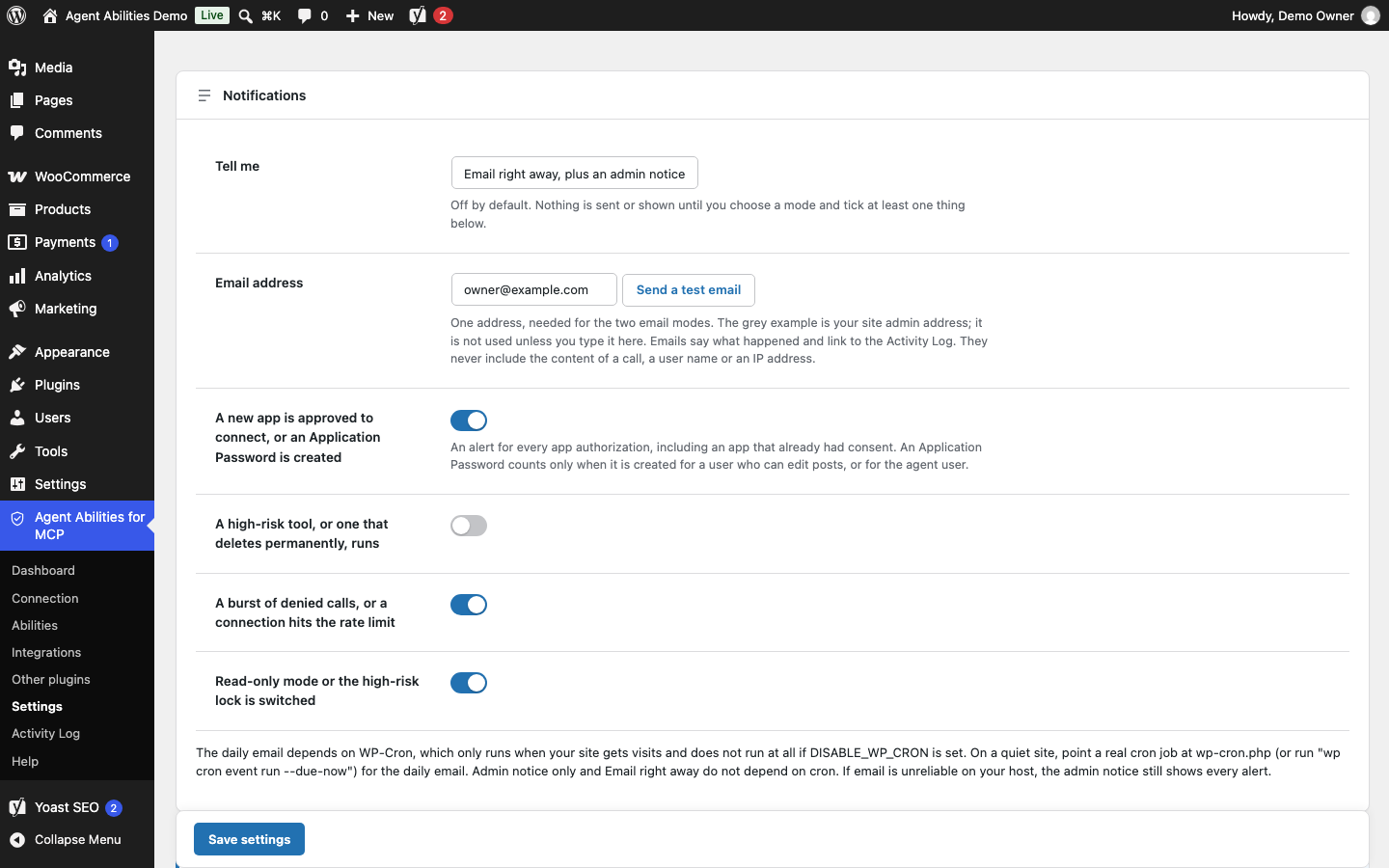
Agent Abilities for MCP 1.9.0 can tell you when an AI agent does something worth a second look. Alerts are off by default, so you opt in.
Takeaways:
- Pick one mode: an admin notice only, an email right away plus the notice, or one email a day plus the notice.
- Four events can trigger an alert: a new app or Application Password, a high-risk or permanent-delete run, a burst of denied calls or a rate-limit hit, and a read-only or high-risk lock switch.
- Each type of event sends at most one email every 15 minutes, and mail also draws from small hourly pools.
- Emails never include call content, a user name or an IP address.
- An alert tells you something happened. It does not stop anything. Read-only mode and the high-risk lock are the controls that stop things.
Can WordPress email me when an AI agent does something risky?
Yes. Under Settings, Notifications, choose a delivery mode and tick the events you want to hear about. Nothing is sent until you do, and each event type is capped at one email every 15 minutes.
What each alert means
There are four, and you can tick them separately. The wording follows the labels on the Settings tab.
A new app is approved to connect, or an Application Password is created
It fires when an app is authorized, even one that already had consent. An Application Password counts only when it is created for a user who can edit posts, or for the agent user. Tick it if you want to know every time something new can reach your site.
A high-risk tool, or one that deletes permanently, runs
It fires when a high-risk or permanent-delete tool runs and succeeds, including a destructive tool from another plugin. Tick it if you have switched on abilities that move money or remove content.
A burst of denied calls, or a connection hits the rate limit
It fires after ten denied calls with no five-minute gap between them, or when a connection reaches the per-minute cap. Tick it if you want an early sign of a misconfigured agent or someone probing.
Read-only mode or the high-risk lock is switched
It fires when either switch is turned on or off. Tick it if more than one person can open Settings.
If the denied-calls alert fires, the denied-calls triage recipe helps you sort front-door refusals from tool denials in the log. Turning read-only mode on and turning it off count as separate events, and so does each app that is authorized. The plugin’s safety controls page explains the switches behind the last alert.
One scope note. Alerts cover calls to this plugin’s tools. Tools that another plugin publishes straight to the MCP Adapter’s default server are outside this plugin’s controls, and outside its alerts, as the 1.8.0 post explains.
Which mode should you pick?
| Mode | Best for, and what to watch |
|---|---|
| Admin notice only | A site you open every day, or a host where mail is unreliable. You see it only when you visit the admin. |
| Email right away, plus an admin notice | A site where a risky run should reach you within minutes. Mail depends on your host, and each event type is capped. |
| One email a day, plus an admin notice | A quiet site where a daily summary is enough. The daily email needs WP-Cron. |
Before you choose, see what normal looks like with the baseline recipe, which summarizes a week of your Activity Log. If you are starting out, pick the email-right-away mode and tick only the new-app and high-risk alerts. Add the others once you know how noisy your agents are. If your mail is flaky, the admin notice is the dependable option.
Set it up
- Open Settings and find the Notifications card.
- Choose a mode under Tell me.
- For either email mode, type one address. The grey example in the field is your site admin address and is not used unless you type it.
- Click Send a test email and check that it arrives.
- Tick the events you want, then save.
Two checks run on save. An email mode needs a valid address, and at least one event has to be ticked unless you choose Off.
The limits, in plain words
Alerts are capped so that one noisy agent cannot flood you. Each type of event sends at most one email every 15 minutes. When the cap holds a message back, the next email says how many it missed.
On top of that, mail draws from four hourly pools that cannot use each other up.
| Pool | Emails per hour |
|---|---|
| Switch changes, and the warning sent to the previous address when alerts are redirected or weakened | 6 |
| High-risk and permanent-delete runs | 4 |
| New apps and Application Passwords | 2 |
| Denied-call bursts and rate-limit hits | 2 |
The reserved pool for switch changes means a flood of denied calls can never crowd out the message that read-only mode was turned off.
If someone changes the alert address, switches email alerts off or unticks an event, the plugin sends a warning to the previous address, as long as that address was receiving email. The warning never names the new address.
If the email does not arrive
Alerts go out through WordPress’s own mail, so they are only as reliable as your host’s. That is why the test button exists: use it before you rely on the setting. On a host where mail is unreliable, choose the admin notice, which shows every alert.
The daily email depends on WP-Cron, a different mechanism. According to the WordPress developer handbook, WP-Cron “is only triggered on page load”, so on a quiet site a scheduled task can run late. If your site sets DISABLE_WP_CRON, it does not run at all unless something else calls it. The handbook’s guide to hooking WP-Cron into the system task scheduler shows how to request wp-cron.php from a real cron job. The plugin’s own note suggests wp cron event run --due-now as an alternative. The admin notice and the email-right-away mode do not depend on cron.
What an email contains
An email says what happened and links to the Activity Log. It never includes the content of a call, a user name or an IP address. Open the log for the details, where you can filter by the tool, the connection and the time of the alert.
With alerts on, the plugin can send you an email without being asked, which it could not do before 1.9.0. It still contacts no AI provider and sends no telemetry, and no site content leaves on its own.
What alerts do not do
An alert reports an event after it happens. It does not block anything, and a denied call is already refused before the alert fires. To stop writes, use read-only mode. To keep money-moving WooCommerce abilities off, keep the high-risk lock on.
The changes in 1.9.0 around this feature are in the release post, and the FAQ carries the short version.