You have the plugin installed, you have picked a client, and the connection went green. Now you are sitting in front of a chat box with no idea what to type. That is a strange place to be left, and it is our fault: the site explains at length what the plugin does and never once shows you a sentence a person actually types.
So here are the sentences, in the order I would try them on a site I had just connected. They start read-only, move to one careful write, build up to the longer prompts that do a whole job in a single request, and then deliberately ask for something the agent should not be allowed to do, because watching a refusal is the fastest way to understand what you have actually installed.
Two things decide what any of these can do
The first is which abilities you switched on. Nothing is exposed when you install the plugin, so a fresh site has an agent connected to a server with no tools in it. If a prompt below does nothing, the likely reason is that its ability is still off. That is the off by default model working, not a bug.
The second is which WordPress user you bound the agent to. The agent signs in as a real account, and that account’s capabilities are the ceiling for everything below. A prompt that works beautifully for an editor-level agent user will be refused for a subscriber-level one, which is the entire point.
You will also notice that none of these prompts name a tool. You do not have to. The agent only sees the tools it is allowed to see, and it picks from those, so you can write the way you would write to a colleague.
Start read-only
1. Ask the agent to describe your site back to you
Describe this WordPress site to me. Give me the site name, tagline, URL, andlanguage, then list the post types and taxonomies that are registered.This is the orientation prompt, and it is the one I would always run first. It reads the site basics and then enumerates the public post types and taxonomies. The post type list carries a writable flag per type, so this single answer also tells you where the agent could write if you let it. If the reply names custom post types you forgot existed, that is worth knowing before you go further.
Safe because every part of it is a read. Nothing here can change anything.
2. Get an inventory before you plan any work
How many posts and pages do I have? Break it down by status, and tell me howmany are sitting in the trash.Counting is its own ability, separate from listing, and it returns a total of active items plus a breakdown by status: published, draft, pending, private, scheduled, and trash. Trash and auto-drafts are shown in the breakdown but kept out of the total, so the number you get is the number of things that actually exist on the site.
Nothing to worry about here: a count reads, and all it hands back is numbers.
3. Search across everything in one go
Search the whole site for anything that mentions our old pricing page, andlist what you find with its post type and status.There is a single site-wide search that spans the exposed content types in one query, rather than making the agent page through post types one at a time. Each result comes back with id, title, status, type, slug, link, author, dates, and excerpt, so the agent can reason about what it found without a second round trip.
Safe because search is read-only, and it can only reach content the bound user is allowed to read.
4. Triage the comment queue without touching it
Show me the pending comment queue. Tell me which ones look like spam and why,but do not approve, delete, or moderate anything.Reading the moderation queue needs the moderate comments capability, so a genuinely low-privilege agent user will not have this one, and the honest answer will be that it cannot. Where it does work, comment reads never return the commenter’s email address or IP.
Safe for a reason worth internalizing: the “do not moderate anything” half of that prompt is not what protects you. Reading the queue and moderating a comment are two different abilities with two different switches. If you never turned moderation on, the agent could not have moderated anything even if you had asked it to.
5. Ask it to read something and think, rather than write
Read our About page and tell me the three things a first-time visitor wouldstill be confused about after reading it. Do not edit anything.Worth doing before any write prompt, because it is the one that shows you whether connecting an agent was worth the trouble. A single page read returns the full content, the excerpt, the terms grouped by taxonomy, the featured image, and the allowlisted meta, which is plenty for the model to work with. You get an opinion, and your site is untouched.
One read of one page, and that is the whole footprint.
Then one careful write
6. Ask for a draft, never a post
Draft a short post announcing our new opening hours. Save it as a draft. Donot publish it.Creating a draft is its own ability, deliberately kept apart from creating a published post. The agent drafts, a human publishes. It can optionally set the slug, featured image, terms, and allowlisted meta while it is at it.
Safe on three counts. Drafting and publishing are separate abilities, so you can enable one without the other. Publishing is a separate capability check on top of that. And if you want a hard floor rather than a habit, force-to-draft is one of the optional safety controls you can switch on, after which nothing an agent writes can go live at all. Agent-written markup is also validated before it saves, so a post the agent wrote does not open in the block editor showing invalid content.
7. Fix a typo without letting it rewrite the page
Post 412 spells "Setttings" with three t's in two places. Fix both, and changenothing else.This is the write I trust most, because it is the narrowest. Find and replace inside a post’s content is a literal operation on the body only: the result is sanitized, the status is never touched, and it is reversible through the normal WordPress revision history.
Safe because the blast radius is the body of one post you named, and you can undo it from the editor like any other edit.
One prompt, a whole workflow
The prompts so far are single moves, so you can watch each ability on its own. In real use you rarely stop at one. The agent will chain a dozen reads and a write inside one request, deciding for itself which tools to call and in what order, and every one of those calls is still gated exactly as it would be alone. Here are the longer prompts I actually keep around, grouped by what you are trying to get done.
A morning briefing on the whole site
Before I start work, give me one briefing on this site. Include the name,tagline, and language. Count my posts and pages and break each down by status.Tell me how many things are in the media library and what types they are. Tellme which post types you are actually allowed to write to. Then list the activetheme and the active plugins. Read only, change nothing.This fans out across half a dozen reads: the site basics, a count of posts and a count of pages, a media count by type, the registered post types with their writable flag, the active theme, and the plugin list. You get one situation report instead of clicking through six admin screens. Because every part is a read, the worst that happens is that an ability you left switched off quietly returns nothing.
An editorial pass that ends in a draft, not an edit
Look at my ten most recent published posts. For each one, flag a missing or thinexcerpt and a missing featured image, and if I have an SEO plugin, tell mewhether the SEO title and meta description are set. Then save one draft thatlists every post you flagged and what it needs. Do not publish anything, and donot edit the posts themselves.The agent lists the recent posts, reads each one for its excerpt and featured image, and if you run Yoast, Rank Math, or All in One SEO, reads the SEO fields too. Handing your SEO metadata to an agent wholesale is its own job; here it is only the read half. Then it writes exactly one thing: a draft holding the findings. The posts it reviewed are never touched. This is the shape I trust most for content work, a pile of reads feeding one reversible draft that a human opens and decides on.
A Monday morning standup for a store
Run me a Monday check on the store. List the orders that are on hold or stillprocessing, pull the notes on anything that looks stuck, show me which productsare out of stock or running low, and list any coupons that expire this month.Give me a short summary of what actually needs a decision. Read only.With the WooCommerce integration switched on, this walks the store the way a manager would on a Monday: orders by status, the notes on the ones worth chasing, stock levels, and coupons near expiry. It is four or five reads stitched into one answer, and running a store with an agent goes well past reading. None of it can change an order, a price, or a stock count, because listing and reading are separate abilities from every write, and you turned on only the reads.
A find-and-replace across the site
We moved our pricing page from /pricing to /plans. Find every published postthat still links to the old URL, and in each one replace /pricing with /plans inthe body. Change nothing else, do not touch anything that is not alreadypublished, and give me the list of what you changed.Here the agent searches for the old URL, then runs a literal find-and-replace inside each post it turned up. That replace is the narrowest write the plugin has: it edits the body text only, it never changes the status, and every change is reversible through the post’s own revision history. So even a wrong guess about which posts matched is something you undo from the editor one post at a time, not a migration you have to unpick.
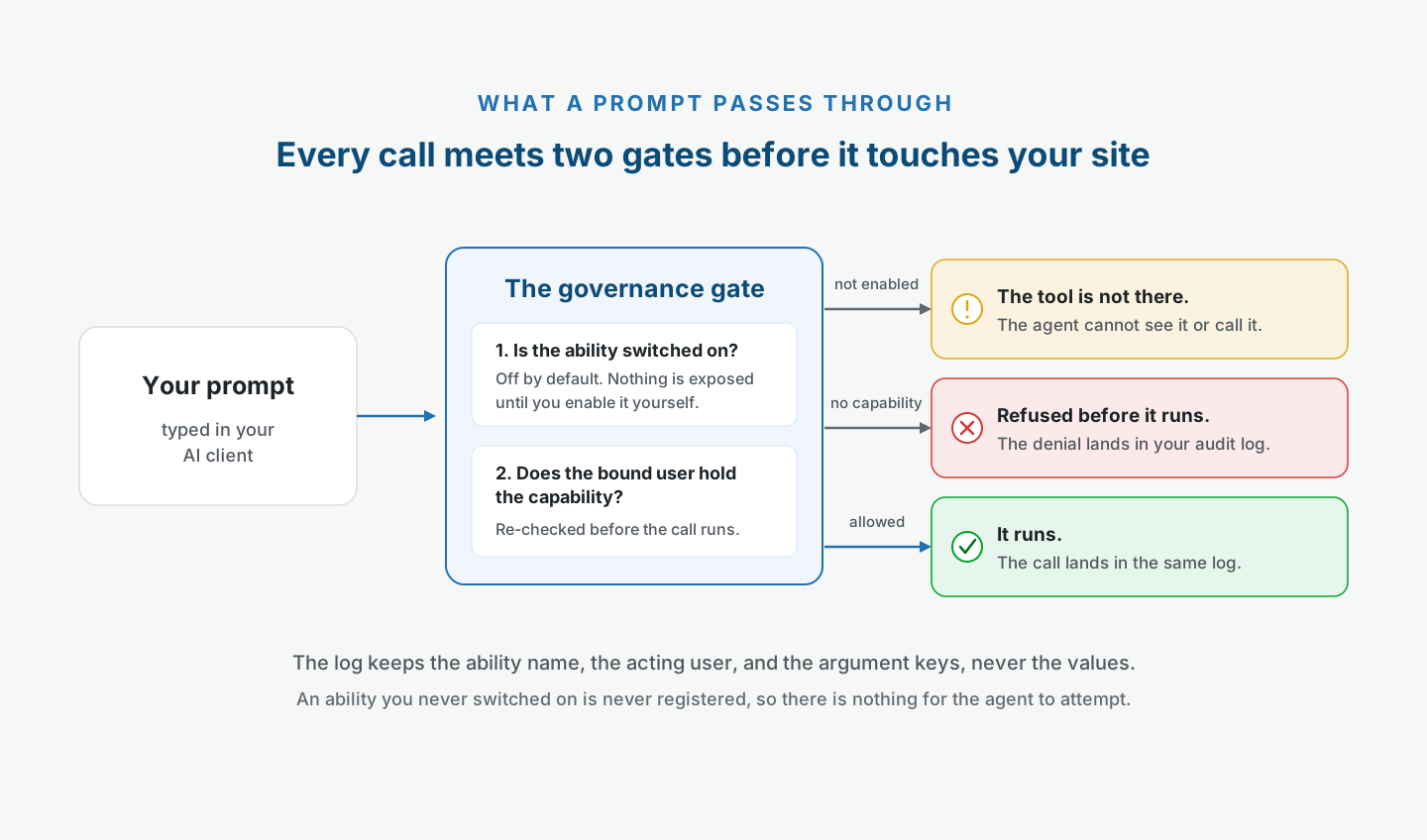
What holds across all four is that “one prompt” does not mean one action the plugin cannot see inside of. The agent is making many separate calls, and each call passes the same two checks: is this ability switched on, and does the bound user hold the capability. A long prompt is not a way around the gate. It is a lot of trips through it.
Now ask for something it should not get
Two prompts left, and both of them fail. They fail for different reasons, which is the interesting bit.
8. Tell it to publish
Publish that draft now.If the account you bound the agent to cannot publish, the call is refused rather than downgraded into something quieter. Nothing gets published, and nothing gets half-published.
The check happens in two places. A connection only lists the plugin’s own tools that its user is allowed to run, so a non-publishing agent usually never sees a publish tool at all, and the capability is re-checked before any call actually runs, so slipping past discovery does not help. The refusal is then written to the audit log in your own database with the acting user, the argument keys, and the identifiers it touched, though never free-text content.
What you see in the chat depends on the model, and different clients word it differently, so I am not going to invent a transcript. It will tell you it cannot publish and generally offer the draft instead. The part that does not vary is your side of it: open the Activity Log in wp-admin and the attempt is sitting there marked as denied. That log entry is the proof. The chat message is just a model being polite about it.
9. Tell it to delete something permanently
Permanently delete everything in the trash.This one fails earlier, and the difference matters.
Permanent deletion is its own destructive ability, off by default like everything else. If you never switched it on, it was never registered, so there is no tool in the list for the agent to reach for. The refusal does not come from a permission check, because nothing got as far as being checked. The corollary is that there is nothing in your audit log either. No call happened. An empty log here is the correct result, not a gap in the record.
If trashing is enabled, the agent will normally offer that instead, and a trashed post is recoverable. Deletes go to Trash wherever WordPress supports it, so a mistake is something you undo from the admin rather than something you restore from a backup.
A few limits sit underneath all of this and are not switches you can flip. The last remaining administrator can never be removed, whatever anyone asks. There is no arbitrary option or meta write and no code execution. The one outbound fetch is the media upload from a URL, which ships off like everything else. The security model covers where those floors are.
Then go read your own log
After a session, look at the Activity Log screen in wp-admin. Every call is there, successes and denials together, with the ability name, the acting user, the argument keys, and the time. Compare it against what you remember asking for.
There is an ability that reads the log too, but it requires the manage options capability, which a properly least-privilege agent user should not have. That is deliberate. The log is your record of the agent, so the agent is a poor choice of narrator.
Where to go next
If a prompt above did nothing, check the ability behind it is switched on and that your bound user holds the capability. Those two account for nearly everything.
From here, the ability catalog shows what else you can turn on, the client guides cover the connection itself if you are still setting up, and the governance model explains why the refusals in prompts 8 and 9 behave the way they do. If you run WooCommerce, ACF, or an SEO plugin, the integrations add their own tools on the same terms, off until you say otherwise.
This is the first of a series on prompting a WordPress site directly. Next ones go deeper into single jobs: content audits, comment triage, and getting a store to answer questions about itself.