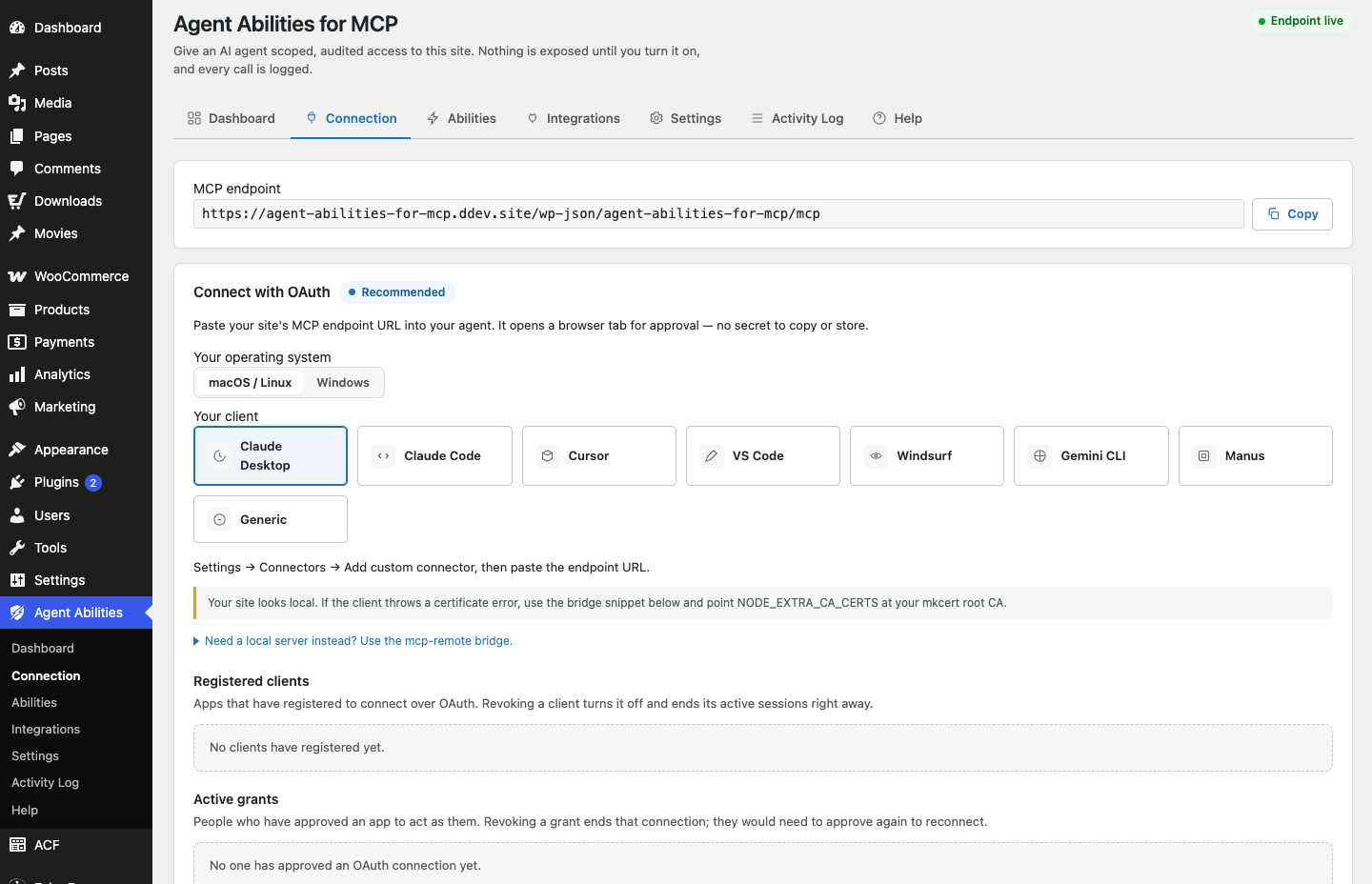
Once the plugin is installed, an agent still needs a way to prove who it is before it can call anything. Agent Abilities for MCP gives you two ways to do that: OAuth or an Application Password. Both end in the same place, which is the agent acting as a real, scoped WordPress user rather than an admin-equivalent key. The difference is in how the credential is granted and where it lives. Neither is a back door, and neither hands the agent more than the user behind it can already do.
The shared idea: least privilege
Before the two options, the thing they have in common. Whichever you pick, the agent connects as a specific WordPress user, and that user’s capabilities are the ceiling. The agent cannot see a tool that user is not allowed to run, and every call re-checks the capability before it executes. So the first real decision is not OAuth versus Application Password. It is which account the agent ends up as. Get it onto a dedicated, low-privilege account and you have already done most of the work of keeping the connection safe. The two routes just get you there differently: with an Application Password you name the account up front, and with OAuth the agent takes the account that approves it in the browser.
OAuth: approve once in the browser
OAuth is the option that feels closest to signing in to an app. You approve the agent once in the browser, and from then on it acts as the account that approved it. There is no long-lived secret for you to copy into a config file and worry about later. The approval happens through a flow you can see, and it is bound to your session.
That last part is the bit to be deliberate about. There is no account picker on the consent screen. Whichever WordPress account is logged in when you approve is the account the agent becomes, so approving while logged in as an administrator gives the agent administrator capabilities. If you want the agent limited, log in as the limited account first, then approve. The consent screen tells you when the approving account is an administrator, so you get a warning rather than a surprise.
OAuth suits you when the agent is genuinely acting on your behalf and you want the convenience of a browser approval rather than managing a stored token by hand. It keeps the credential handling out of your text editor, which is one fewer secret sitting in a file.
There is one thing the flow does not do, and it is worth knowing rather than assuming: the scope a client asks for does not restrict the token it gets. The token carries the capabilities of the account that approved it, and every ability re-checks that capability before it runs. So the account is the boundary here too, not the request the client made on the way in.
Application Password: a dedicated low-privilege user
The Application Password route points a dedicated user at the endpoint. You create an account with only the capabilities the agent needs, generate an Application Password for it, and give the client that. The plugin includes a guided screen that builds the client configuration for you and checks the endpoint, so you are not assembling the connection details by guesswork.
This is the option to reach for when you want a clear separation between “the agent’s account” and “your account.” The agent is not you. It is a named, limited user you can inspect, restrict, and revoke on its own without touching your own login. If you like being able to look at a user in the admin and know exactly what the agent can do, this is the more literal way to get there.
One more thing about that account, and it is the reason the dedicated part matters more than it looks. An Application Password is a whole-site WordPress credential, bounded only by the role of the user it belongs to, and the plugin cannot narrow it. The IP allowlist, the high-risk lock, and the audit log govern the calls that arrive at the plugin’s MCP endpoint. They do not follow that credential to the rest of WordPress, where it is simply a valid login for that user, good against REST and XML-RPC as well, none of which the plugin’s gating touches. So the role you give the account is the real boundary, not anything on the plugin’s Settings tab. A token issued over OAuth does not have that reach, because it only ever authenticates this one endpoint.
How to choose
A simple way to decide:
- Reach for OAuth when the agent is acting as you, you want a browser approval instead of a stored secret, and the convenience of connecting as your own account is worth it.
- Reach for an Application Password when you want the agent to be its own dedicated, low-privilege user that you can audit and revoke independently of your own account.
Both are legitimate. Neither weakens the governance model, because the governance model does not rely on the credential type. It relies on the user’s capabilities and the per-call check, and both options honor that. There is one asymmetry, described above: the plugin can bound an OAuth token to its own endpoint, and it cannot bound an Application Password at all. Whichever you pick, put it on an account whose role you would be comfortable handing over, because that role is what actually holds.
What connects today
The client on the other end matters for how you connect. ChatGPT, Claude.ai, Claude Desktop, Manus, Claude Code, Cursor, VS Code, Windsurf, and the Gemini CLI all work today. ChatGPT connects through its Developer Mode custom connectors, a beta feature on ChatGPT’s paid plans: you turn Developer Mode on, add your site as a custom connector, and approve it once over OAuth. Claude.ai, Claude Desktop, and Manus connect the same hosted-connector way, adding your site as a custom connector and approving it over OAuth, and Claude.ai is in beta but not gated behind a paid plan. Claude Desktop catches people out. It is a desktop app, so it sounds like it would dial your site from your own machine, but it shares the Claude.ai connector, which is dialled from Anthropic’s side. Your site still has to answer on the public internet. The rest open a remote MCP connection directly or reach the server through the open-source mcp-remote bridge, which runs on your own machine, so the connection still terminates locally rather than through a third party. The Gemini app is not supported yet, because it expects a streamable HTTP connector the adapter does not serve natively at this stage.
After you connect
Whichever route you took, the same habit applies. Start narrow. Enable one ability, ideally a read-only one, and confirm it appears in the audit log when the agent uses it. The log records every call in your own database, refused attempts included, with the argument keys and the identifiers it touched, never free-text content. That gives you a real record to check against before you widen access.
If reads are all you want the agent to have, there is now a firmer way to hold it there than remembering to enable only read abilities. Read-only mode, added in 1.6.0 and off by default, is a single switch on the Settings tab that keeps anything that writes from being offered as a tool at all, whatever else you have ticked. Enabling one read ability is a habit; read-only mode makes it a floor. It is the more durable choice when read-only is the actual goal.
Connecting the agent is the easy part. Deciding, ability by ability, what it is allowed to reach is the part worth taking slowly, and both connection methods are built to let you do exactly that.