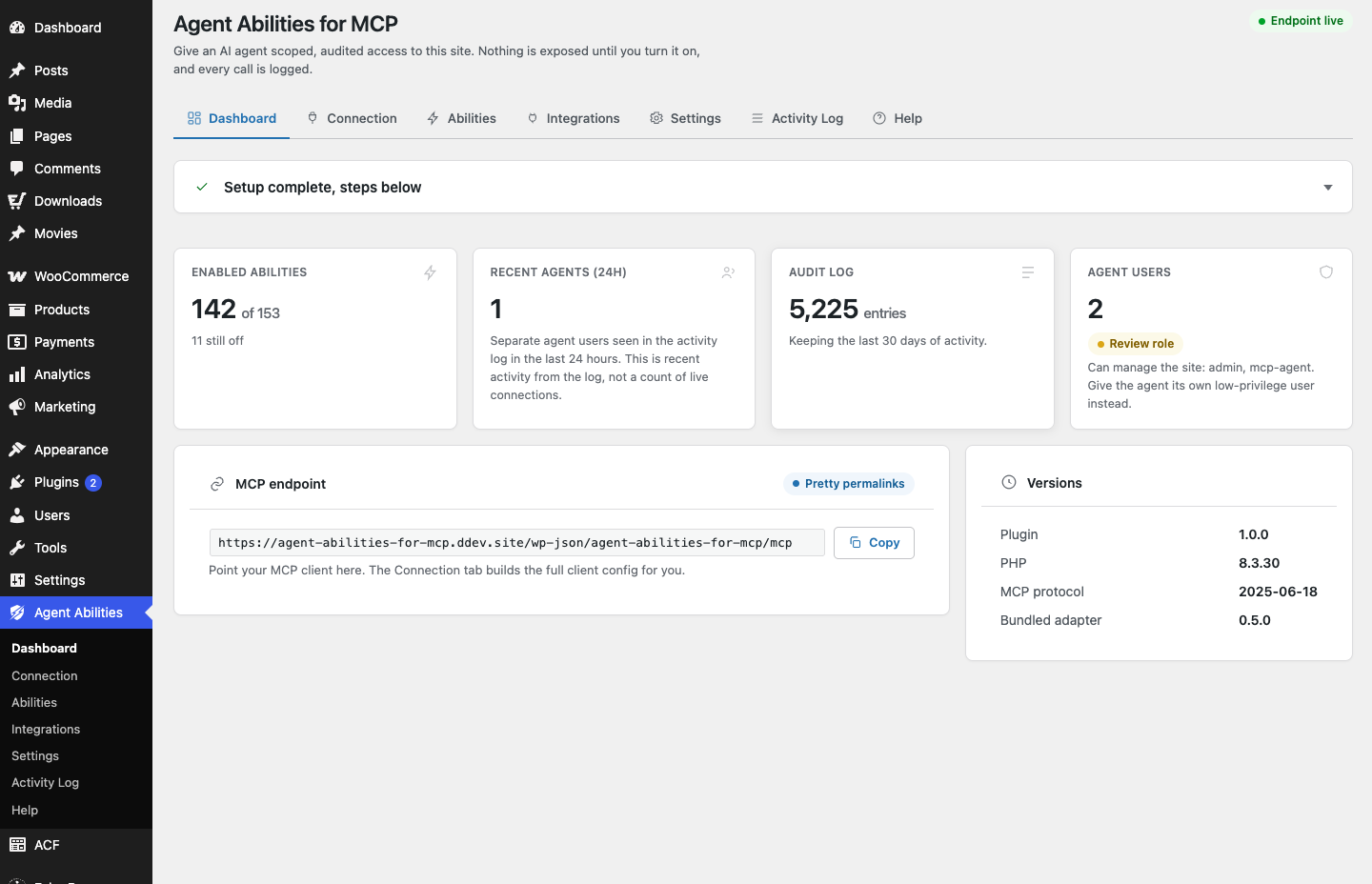
MCP stands for Model Context Protocol. It is an open standard that lets an AI client, such as a desktop assistant or a coding tool, talk to an outside system through a set of described tools. The client asks what tools exist, reads what each one does, and calls the ones it needs to finish a task. WordPress fits that shape well, because a site is already a stack of capabilities: create a post, moderate a comment, look up an order, read a taxonomy. MCP gives an agent a structured way to see those capabilities and act on them without you writing a bespoke integration for every client. On WordPress, the thing an agent talks to is a plugin. Agent Abilities for MCP is a free one that turns your site into a governed WordPress MCP server: every ability is off until you switch it on, the agent connects as a scoped user, and every call is logged.
The problem MCP actually solves
Before MCP, connecting an AI tool to your site meant custom glue. You picked a client, learned its plugin format, and wrote code that mapped its expectations onto your data. Do that for three clients and you have three integrations to maintain. MCP flips it around. Your site describes its abilities once, in a standard shape, and any MCP-aware client can discover and call them. The work moves from “one integration per client” to “one server that every client understands.”
For a WordPress owner, that server is the thing you install. Once it is running, adding another client is a matter of connecting it rather than building a new integration, and the agent works with the content and tools you decide to expose.
How it is built
The plugin does not invent its own transport or its own protocol. It runs on the WordPress 6.9 Abilities API and the official MCP Adapter. The Abilities API is where each capability is defined as a first-class thing WordPress understands. The MCP Adapter is what speaks the protocol to clients. Building on those two means the plugin rides standards that the wider WordPress and MCP ecosystems maintain, rather than a private path that only this plugin knows how to walk.
The catalog today is 179 governed abilities: 85 that cover WordPress core, plus 94 that come from integrations like WooCommerce, Advanced Custom Fields, The Events Calendar, and the major SEO plugins. Integration abilities only appear when their host plugin is active, and every ability starts switched off.
What it is not
MCP for WordPress is not a pipe that ships your content off to an AI company. The direction matters here. Your AI client connects in to your server and calls the abilities you enabled. The plugin itself contacts no AI provider and makes no outbound requests of its own. It sends no telemetry. Whatever it records, including the audit log, stays in your own WordPress database.
It is also not the same as handing an agent an admin login. An agent connected through MCP is not roaming your dashboard. It sees a list of tools, and that list is shaped by what the user behind the connection is allowed to do.
Why governance is the real story
A raw list of tools is easy. Making that list safe to expose is the hard part, and it is where this plugin spends its effort. Nothing is exposed on install. You turn abilities on one at a time. The agent connects as a real WordPress user through OAuth or an Application Password, never an admin-equivalent key, and it takes that account’s capabilities, so you approve while logged in as the account you want the agent to be. A connection only lists the tools its user can run, and every call re-checks that capability before it executes. Every call is written to an audit log, refused attempts included, with the argument keys and the identifiers it touched, never free-text content.
That combination is the point. Tool count is not the pitch. The pitch is that you can let an agent touch your site and still know exactly what it is allowed to do, what it did, and what it was stopped from doing.
Which clients work today
Right now you can connect ChatGPT, Claude.ai, Claude Desktop, Manus, Claude Code, Cursor, VS Code, Windsurf, and the Gemini CLI. ChatGPT connects through its Developer Mode custom connectors, a beta feature on ChatGPT’s paid plans. Claude.ai, Claude Desktop, and Manus connect the same way, as a custom connector you add and approve over OAuth, and Claude.ai is in beta but not gated behind a paid plan. Claude Desktop shares the Claude.ai connector rather than dialling out from your own machine, so it needs your site to answer on the public internet. The rest open a remote MCP connection directly or reach the server through the open-source mcp-remote bridge, which runs on your own machine. The Gemini app is not supported yet, because it expects a streamable HTTP connector that the adapter does not serve natively at this stage.
Where to start
If you are new to this, the useful first move is small. Install the plugin, connect one client, and enable a single read-only ability like site-wide search. Watch it show up in the audit log. Once you trust what you are seeing, widen access one ability at a time. The whole design assumes you will start narrow and expand deliberately, which is exactly how you should treat any agent that can reach your site.